
Introduction
We have all been there. It is a moment of pure silence and panic.
You are sipping your tea, feeling productive. You just finished writing a great blog post, or maybe you just clicked “Update” on a plugin you have used a thousand times. You wait for the page to reload. You expect to see your beautiful website.
But instead… Boom.
Nothing. Nada. Zilch.
Just a blinding, bright white screen. No error message. No “404 Not Found.” No “Please try again.” Just a vast, empty void where your business used to be.
This, my friend, is the infamous WordPress White Screen of Death (WSoD).
It is the ghost of the WordPress world. It is scary specifically because it is so silent. It doesn’t tell you what went wrong. Did your server explode? Did a hacker delete your database? Did you accidentally break the internet?
Relax. Take a deep breath.
The WSoD is actually WordPress’s way of protecting you. Something went wrong—a script crashed, a file is missing, or a limit was hit—and rather than showing your visitors a page full of ugly computer code and sensitive error data, WordPress decided to show nothing at all. It “fainted” to save face.
In this guide, I am going to walk you through 17 distinct ways to wake it up. We will start with the “turn it off and on again” style fixes (the easy ones) and move all the way to the “open the hood and hit the engine with a wrench” solutions (the advanced ones).
I have fixed this error hundreds of times in my SEO career. Let’s get your site back online.
Fix #1: Clear Your Browser Cache
The Logic Behind It: Before you start tearing your website apart, you need to make sure the problem is actually the website. Sometimes, the problem is you.
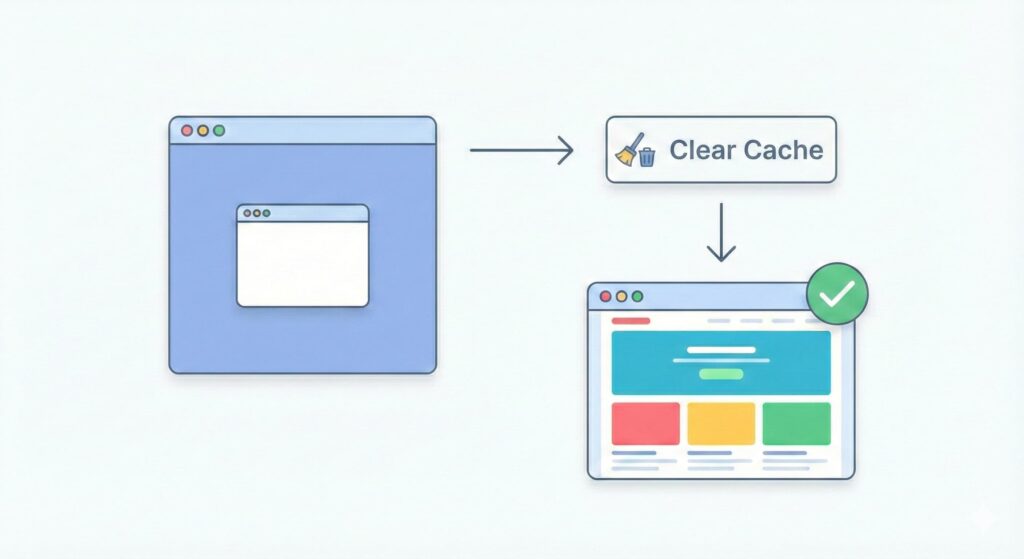
Web browsers (like Chrome, Firefox, Safari) are designed to be lazy. When you visit a website, they download the images and files and save them on your computer. This is called “caching.” The next time you visit, the browser shows you the saved files instead of downloading them again, which makes the site load faster.
However, if your browser saved a version of your site when it was briefly broken or glitching, it might keep showing you that white screen even after the site is fixed. You are looking at a “ghost” of the past.
Step-by-Step Fix:
- Open your browser.
- Access History: Press Ctrl + Shift + Delete (on Windows) or Cmd + Option + E (on Mac).
- Select the range: Choose “All time” to be safe.
- Check the box: Make sure “Cached images and files” is selected. You don’t necessarily need to delete your passwords or history, just the cache.
- Click “Clear Data.”
- Test: Reload your website.
I once spent 20 minutes sweating over a client’s site that went white. I was about to log into the server and start deleting files when I decided to open the site on my phone (using 4G, not WiFi). It loaded perfectly! My computer’s browser was just “remembering” a momentary glitch. I cleared my cache, and the white screen vanished. I felt silly, but at least the site was okay.
Fix #2: The “Magic” of WP Recovery Mode
The Logic Behind It: If you are using a modern version of WordPress (version 5.2 or later), you have a built-in safety net. In the old days, a bad plugin would crash the whole site instantly. Now, WordPress is smart enough to detect which plugin is causing the crash.
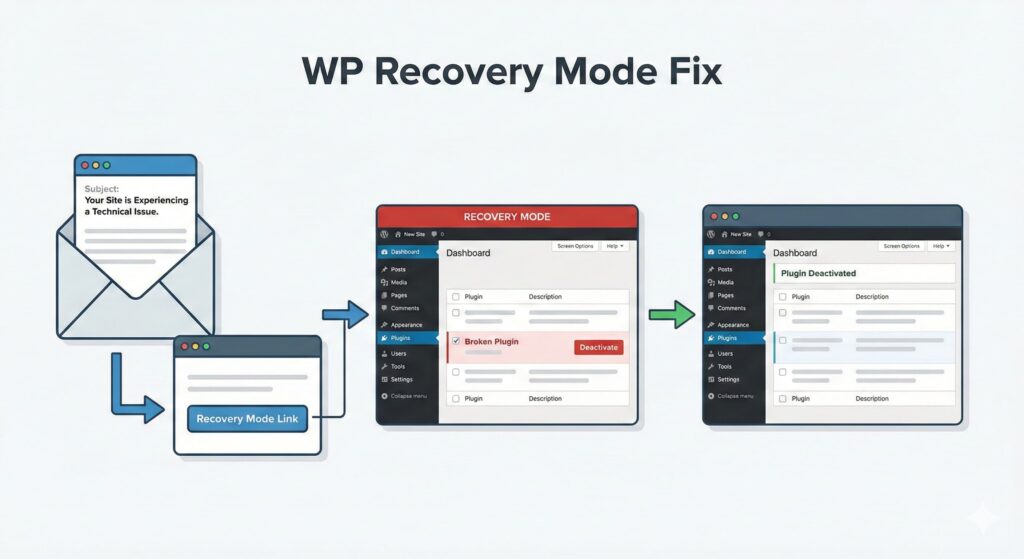
When a crash happens, WordPress tries to “pause” the bad code and sends a secret backdoor link to the site administrator.
Step-by-Step Fix:
- Check your email: Go to the inbox of the email address associated with your WordPress admin account.
- Look for the subject line: “Your Site is Experiencing a Technical Issue.”
- Open the email: Inside, you will see details about the error (e.g., “An error of type E_ERROR was caused in line 45 of file…”).
- Click the link: There will be a button or link that says “Recovery Mode.”
- Log in: This link bypasses the white screen and forces the dashboard to load.
- Deactivate: Once you are in, WordPress will highlight the broken plugin or theme. Click “Deactivate.”
Last year, an automatic update for a popular contact form plugin went wrong. My phone started buzzing with “Site Down!” alerts. I checked my email, found the recovery link, clicked it, and saw a big red banner: “Plugin Contact Form 7 caused a fatal error.” I clicked “Deactivate,” and the site was back instantly.
Fix #3: Increase the Memory Limit
The Logic Behind It: This is one of the most common causes of the WSoD. Your website runs on PHP, a coding language that needs memory (RAM) to think and process tasks.
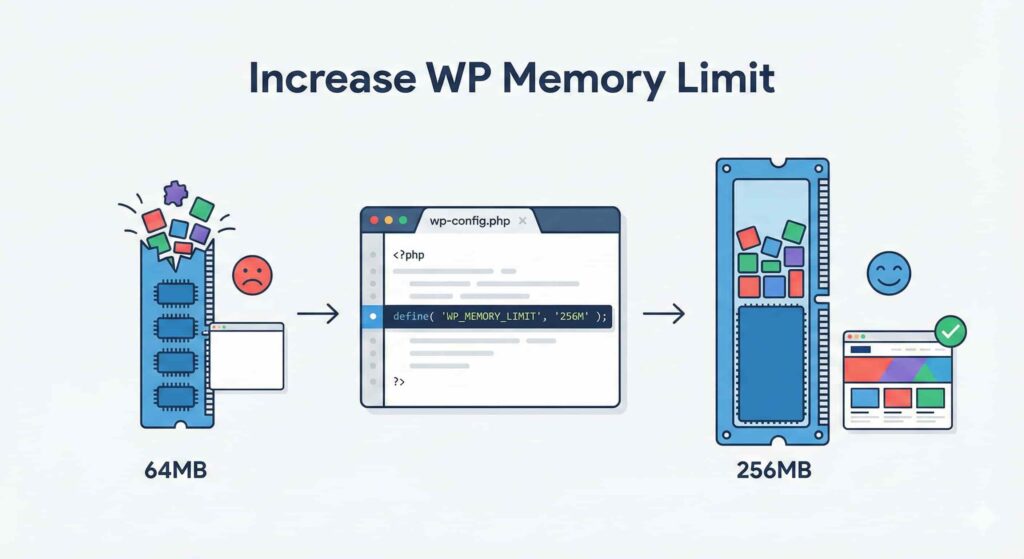
Think of your website like a backpack. By default, many hosting companies give you a small backpack (64MB of memory). As you add heavy plugins, page builders, and complex themes, you are trying to stuff too many items into that small backpack. Eventually, the zipper bursts, everything falls out, and you get a White Screen of Death.
We need to give your site a bigger backpack.
Step-by-Step Fix:
- Access your files: Log into your hosting account’s “File Manager” or use an FTP client like FileZilla.
- Find the file: Look for wp-config.php in the main folder (usually public_html).
- Edit: Right-click and select Edit.
- Add the code: Scroll down until you see the line that says /* That’s all, stop editing! Happy publishing. */. Right before that line, paste this exact code: define( ‘WP_MEMORY_LIMIT’, ‘256M’ );
- Save: Save the file and reload your site.
I was building a shop using WooCommerce for a client. As soon as I added 50 products, the screen went white. It turns out WooCommerce is a hungry beast. It had eaten all the 64MB of memory allocated by the host. Bumping it to 256MB fixed it instantly.
Fix #4: Deactivate All Plugins
The Logic Behind It: Plugins are written by thousands of different developers. Sometimes, Plugin A writes code that conflicts with Plugin B. It’s like two students fighting in a classroom—eventually, the whole class stops working.
Since you have a white screen, you cannot log into your dashboard to turn them off. We have to be sneaky and turn them off from the “back end.”
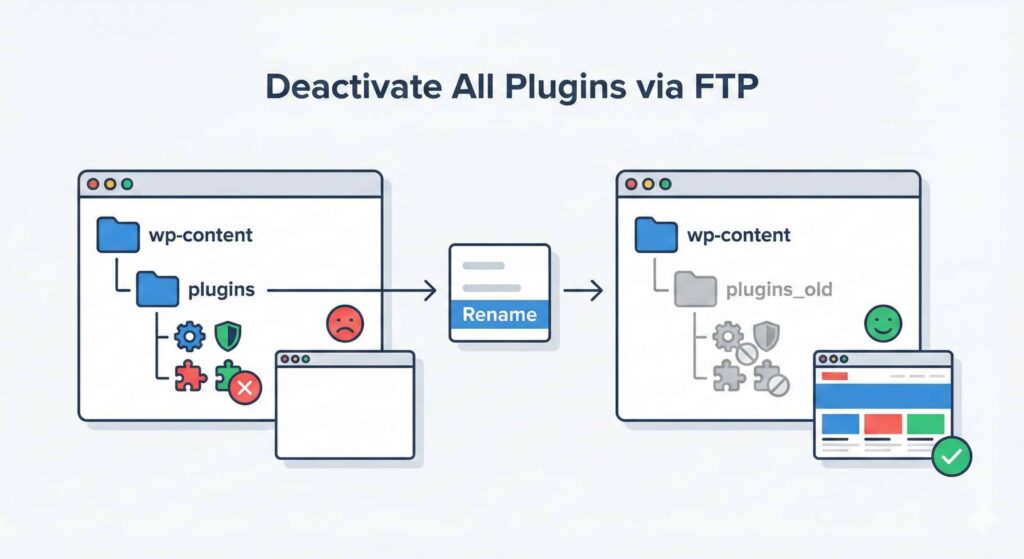
Step-by-Step Fix:
- Open FTP/File Manager: Connect to your website files.
- Navigate: Go to the wp-content folder.
- Find the folder: You will see a folder named plugins.
- The Trick: Right-click the folder and Rename it to plugins_old.
- Test: Reload your website.
- If the site loads: You know for a fact one of your plugins is the killer.
- The Diagnosis: Rename the folder back to plugins. Your site might go white again (or stay up but with no plugins active). Go into your dashboard (which should now work), and activate your plugins one by one. Reload the site after each activation. When the screen goes white, the last plugin you clicked is the culprit.
I had a client who installed three different “Security” plugins. They started fighting over who gets to protect the site (blocking each other’s files), and the site crashed. I renamed the folder, got back in, and deleted two of them. Problem solved.
Fix #5: Switch to a Default Theme
The Logic Behind It: If disabling plugins didn’t work, the problem might be your “clothes”—your theme. Themes contain complex code to make your site look good. If you updated your theme and there was a bug in the code, or if your theme conflicts with a new version of WordPress, the site will crash.
We need to force WordPress to take off the fancy suit and put on basic pajamas (a default theme like Twenty Twenty-Four).
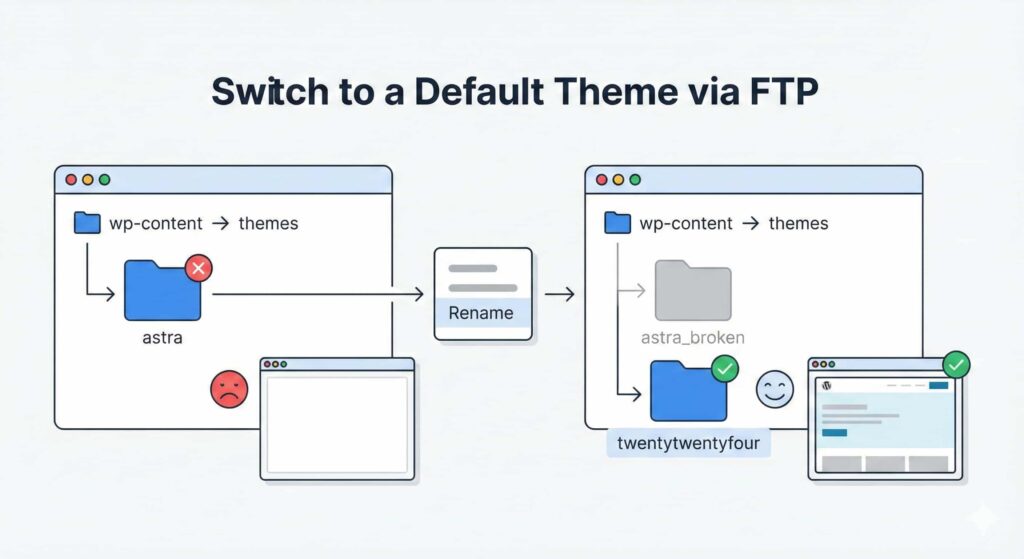
Step-by-Step Fix:
- Open FTP/File Manager.
- Navigate: Go to wp-content/themes.
- Identify: Find the folder of the theme you are currently using (e.g., astra, divi, or generatepress).
- Rename: Right-click and rename it to something like astra_broken.
- The Result: WordPress will look for the theme, fail to find it, and automatically fall back to the default WordPress theme installed in that folder.
- Test: Reload the site. If it works (even if it looks ugly), your theme was the problem.
A friend bought a “Premium Theme” from a shady website to save money. It looked great for two days. Then, the WSoD appeared. We renamed the theme folder, and the site loaded with the default WordPress look. Turns out the premium theme had a nasty bug (or maybe malware) that broke the whole site.
Fix #6: Enable Debug Mode
The Logic Behind It: Right now, the white screen is hiding the error. WordPress is “muting” the problem. We can force WordPress to speak up and print the error message right on the screen. This doesn’t fix the site, but it tells us exactly what to fix.
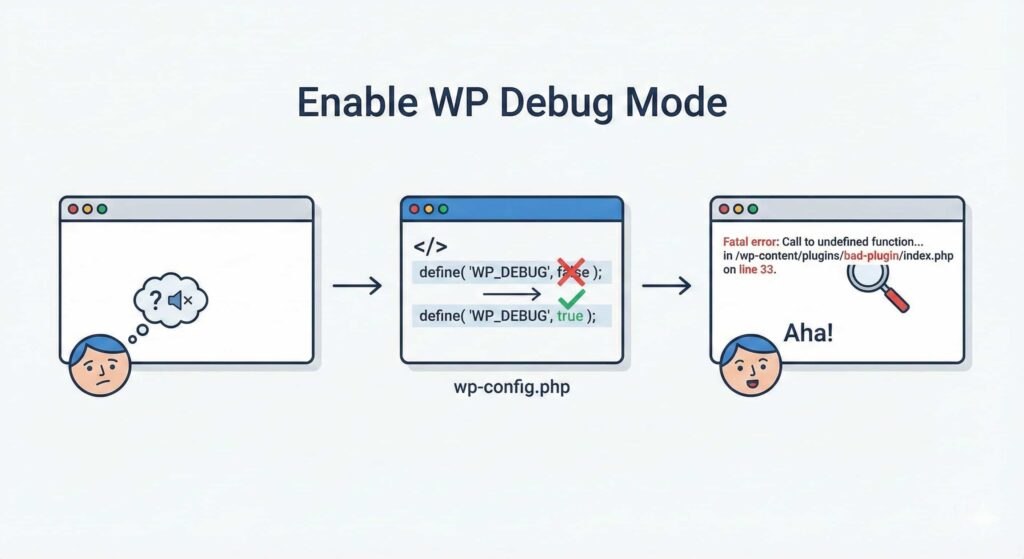
Step-by-Step Fix:
- Open wp-config.php (via FTP or File Manager).
- Search: Look for the line: define( ‘WP_DEBUG’, false );
- Edit: Change the word false to true.
- Alternative: If you don’t see that line, paste this code near the top: define( ‘WP_DEBUG’, true );
- Test: Save and reload your site.
- Read: Instead of a white screen, you will now see text at the top, something like: “Fatal error: Call to undefined function in /wp-content/plugins/bad-plugin/index.php on line 33.”
- This tells you the Plugin Name (bad-plugin) and the Line Number (33). Now you know exactly what to delete.
I was staring at a white screen for an hour. I finally enabled debug mode. The screen immediately told me: “Syntax error in functions.php on line 40.” I checked that file, and I had missed a semicolon ; in my code. I added the semicolon, and the site was fixed in 10 seconds.
Fix #7: Clear the WordPress Cache
The Logic Behind It: Wait, didn’t we already clear the cache in Fix #1? That was the Browser cache (your computer). This is the Server cache (the website itself).
If you use caching plugins like WP Rocket, W3 Total Cache, or Autoptimize, they create static HTML files of your site to make it fast. Sometimes, these plugins save a “broken” file. Even if you fix the error on your site, the plugin keeps handing the broken file to visitors.
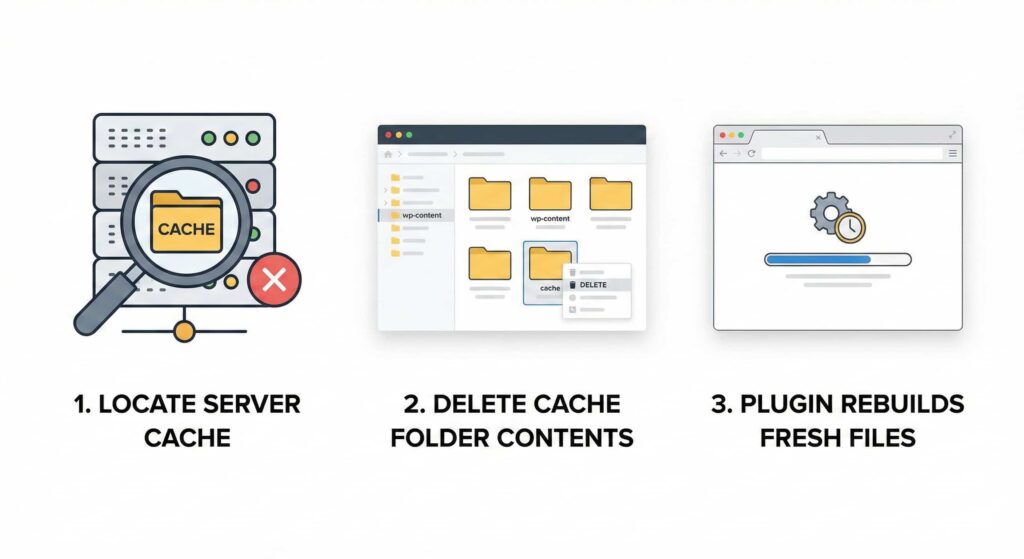
Step-by-Step Fix:
- Open FTP/File Manager.
- Navigate: Go to wp-content.
- Find the folder: Look for a folder named cache.
- Delete: Enter that folder and delete everything inside it.
- Don’t Worry: Your caching plugin will automatically rebuild these files the next time someone visits the site. You are just forcing it to start fresh.
I changed a font on a client’s site. The site went white. I undid the change, but the screen stayed white! I was panicking. Then I realized the cache plugin was still serving the “broken” version it had saved 5 minutes ago. I deleted the cache folder contents, and the site returned to normal.
Fix #8: Fix Syntax Errors
The Logic Behind It: Did you recently try to be a developer? Did you copy-paste some code snippet from a blog into your functions.php file?
PHP (the language of WordPress) is like a strict English teacher. If you miss a single comma, a semicolon ;, or a closing bracket }, the code will not run. It crashes immediately. This is called a “Syntax Error.”
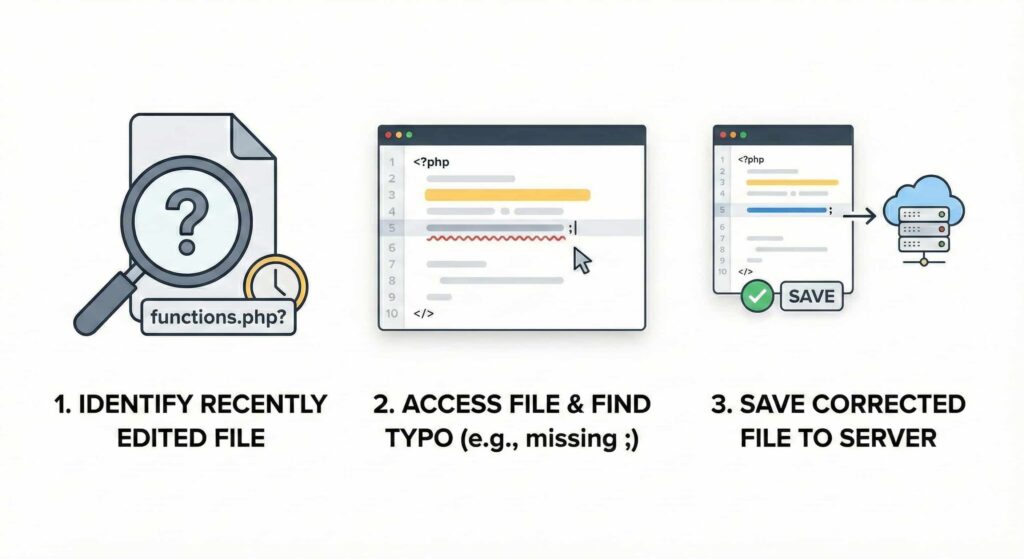
Step-by-Step Fix:
- Reflect: Think: What file did you edit in the last 24 hours?
- Access: Open that specific file via FTP.
- Undo: If you aren’t a coder, the safest move is to simply delete the code you recently added.
- Check: If you are comfortable, look for missing ; at the end of lines.
- Save and Upload.
I wanted to hide the “Admin Bar” for my users. I copied a code snippet from a forum. I accidentally didn’t copy the very last curly bracket }. I pasted it, hit save, and the screen went white. I had to FTP in and delete that snippet to get access back.
Fix #9: Check File Permissions
The Logic Behind It: Servers have strict rules called “Permissions.” These rules decide who is allowed to read, write, or execute files.
- Read: See the file.
- Write: Edit the file.
- Execute: Run the file as a program.
If these rules get messed up (often by a bad migration plugin), the server might say, “Hey, nobody is allowed to read this file!” and shows a white screen to block access.
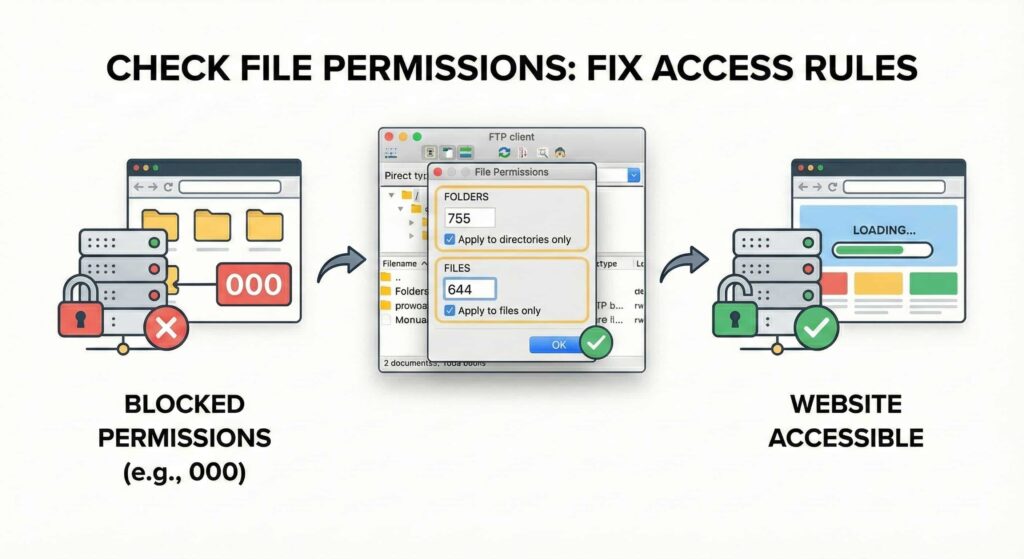
Step-by-Step Fix:
- Open FileZilla (FTP).
- Select Root: Right-click your public_html folder.
- Choose: Click File Permissions.
- Set Folders: Type 755 in the numeric value box. Check “Recurse into subdirectories” and select “Apply to directories only.”
- Set Files: Do it again, but this time type 644. Check “Recurse into subdirectories” and select “Apply to files only.”
I moved a site from GoDaddy to SiteGround. The migration tool messed up the permissions, setting everything to “000” (which effectively locks the door and throws away the key). The site was white. I reset permissions to standard 755/644, and it lit up like a Christmas tree.
Fix #10: Bump Up the PHP Text Processing Limit
The Logic Behind It: This is a rare one, but it happens on large sites. It’s related to something called “Recursion” and “Backtracking.”
Imagine your website is reading a book (your code). If you have a massive page built with a page builder, or a blog post with 20,000 words, the “book” is huge. Sometimes, PHP gets tired of reading and just quits halfway through. When it quits, you get a white screen.
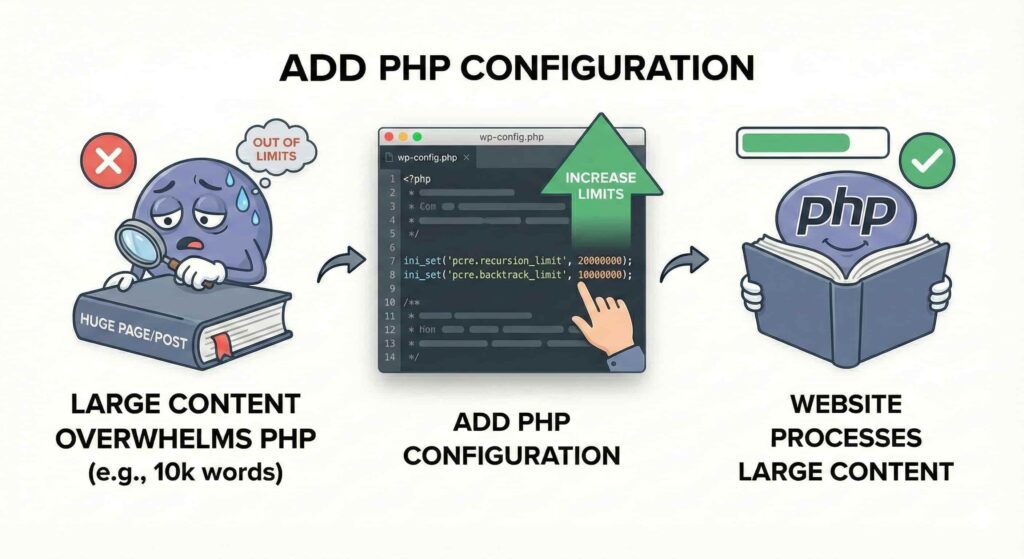
Step-by-Step Fix:
- Open wp-config.php.
Add Code: Scroll to the bottom and add these two lines:
PHP
ini_set(‘pcre.recursion_limit’, 20000000);
ini_set(‘pcre.backtrack_limit’, 10000000);
- Save: This gives PHP permission to read much larger files without quitting.
I had a travel blogger client who wrote a guide to Europe with 10,000 words and 200 high-res images on a single page. When she tried to save, the screen went white. Increasing the recursion limit allowed WordPress to process that monster of a blog post.
Fix #11: Regenerate the .htaccess File
The Logic Behind It: The .htaccess file is the “Traffic Controller” of your server. It handles the permalinks (URL structure).
If a plugin writes bad instructions into this file, the traffic controller gets confused. It might send your visitors into a wall (White Screen) instead of to your homepage.
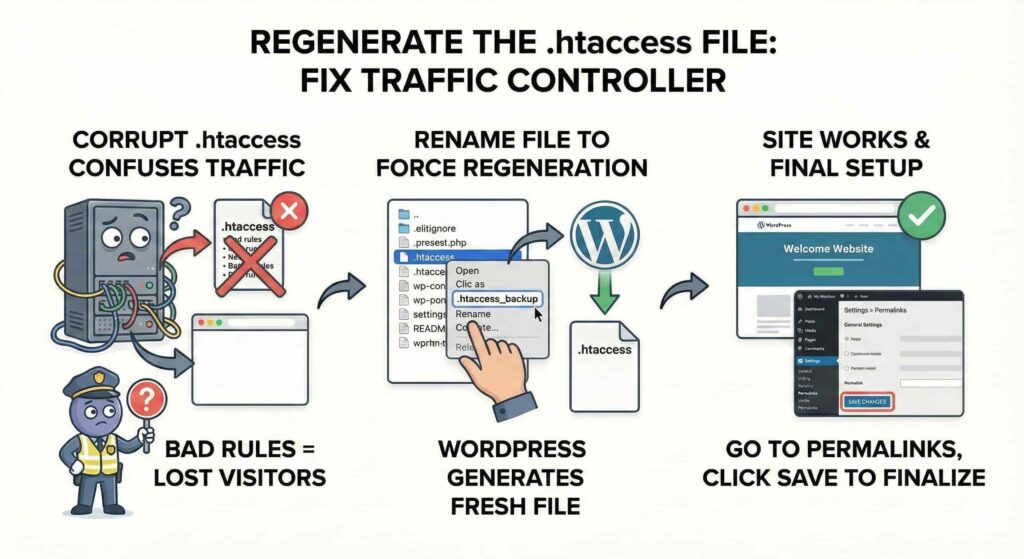
Step-by-Step Fix:
- Connect via FTP.
- Find: Locate the .htaccess file in the main directory.
- Rename: Right-click and rename it to .htaccess_backup.
- Test: Reload your site.
- If it works: WordPress has created a fresh, clean .htaccess file for you automatically.
- Final Step: If the site loads, go to your Dashboard > Settings > Permalinks and just click “Save Changes” once. This ensures the new file is set up correctly.
I installed a security plugin to hide my login URL (changing it from /wp-admin to /my-secret-login). It wrote some bad rules into .htaccess. Suddenly, my homepage worked, but every other page was a white screen or a 404. Deleting .htaccess fixed it immediately.
Fix #12: Update (or Downgrade) Your PHP Version
The Logic Behind It: WordPress runs on PHP. Like the iOS on your iPhone, PHP has versions (7.4, 8.0, 8.1, 8.2).
- The Problem: If you are running an ancient version (like PHP 5.6), modern WordPress will crash.
- The Inverse Problem: If you upgrade to the absolute newest version (like PHP 8.3), but you are using an old plugin from 2019, that plugin won’t understand the new language and will crash the site.
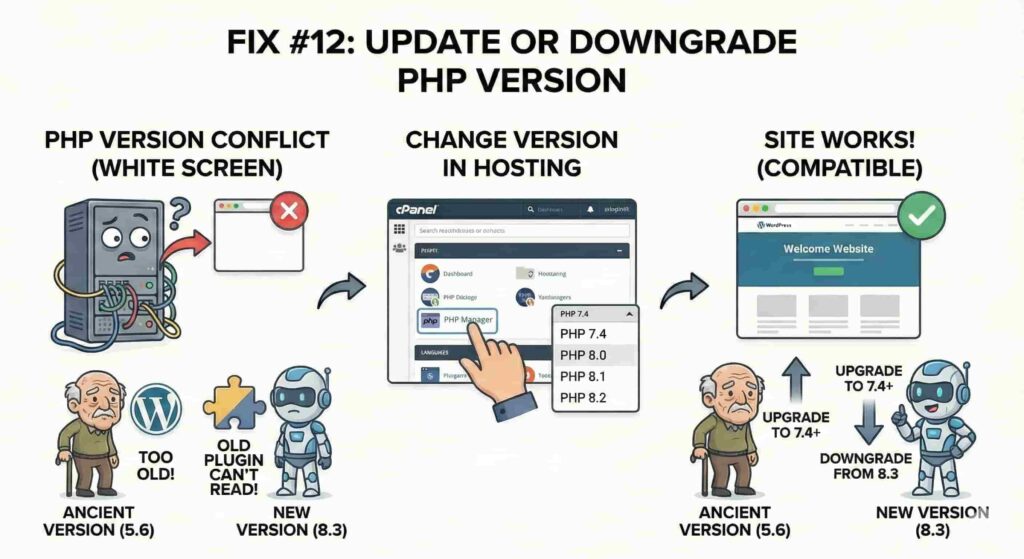
Step-by-Step Fix:
- Log in to Hosting: Go to your cPanel, Hostinger, or SiteGround dashboard.
- Find: Look for an icon named PHP Manager or Select PHP Version.
- Check: See what you are running.
- Experiment:
- If you are on 8.2, try downgrading to 8.0 or 7.4.
- If you are on 5.6, please upgrade to at least 7.4 immediately!
- Test: Reload the site after each change.
I updated a client’s server to the latest, bleeding-edge PHP 8.3. Her site went white. It turned out she was using a slider plugin that hadn’t been updated in years. It couldn’t handle PHP 8 syntax. Downgrading the server to PHP 7.4 brought the site back until we could replace that old plugin.
Fix #13: Delete the .maintenance File
The Logic Behind It: Have you ever noticed that when you update plugins, WordPress says, “Briefly unavailable for scheduled maintenance”?
To do this, WordPress creates a temporary file called .maintenance. It’s like putting up a “Wet Floor” sign. Once the update is done, WordPress deletes the file.
However, if your internet cuts out or the server times out during the update, WordPress forgets to take the sign down. Your site stays stuck in “Maintenance Mode,” which often looks like a white screen.
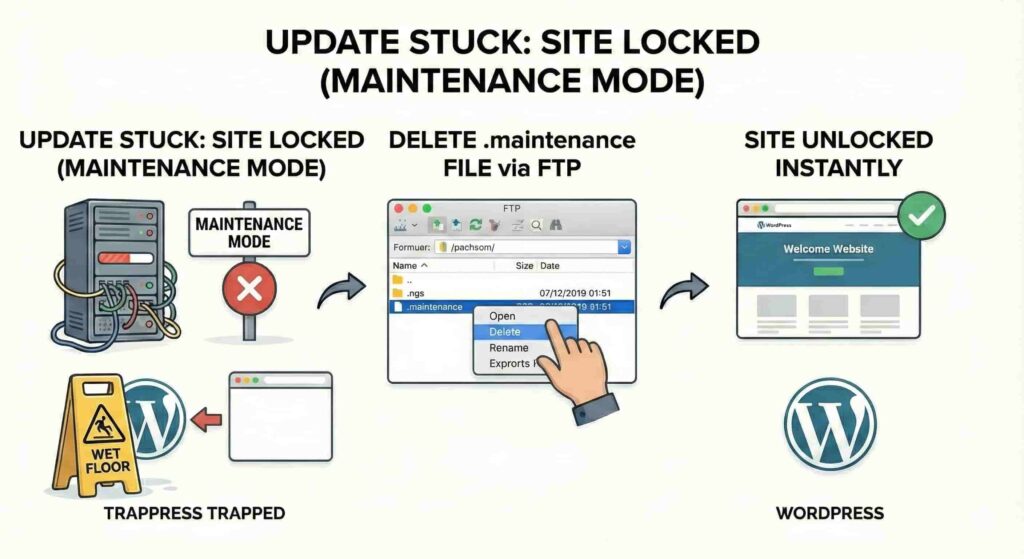
Step-by-Step Fix:
- Connect via FTP.
- Search: Look in the root folder for a file explicitly named .maintenance.
- Delete: Right-click and delete it.
- Done: Your site will instantly unlock.
I clicked “Update All” on 10 plugins at once. My internet connection flickered and died right in the middle. When I came back online, my site was stuck. Deleting that little .maintenance file was all it took to fix it.
Fix #14: Use the WordPress Auto-Repair Feature
The Logic Behind It: Your WordPress Database is where all your text, user data, and settings live. It’s like a library. Sometimes, the index cards in the library get thrown on the floor (corruption). When WordPress tries to find a book (your page), it can’t, so it gives up and shows a white screen.
WordPress has a hidden “Librarian” tool to clean this up.
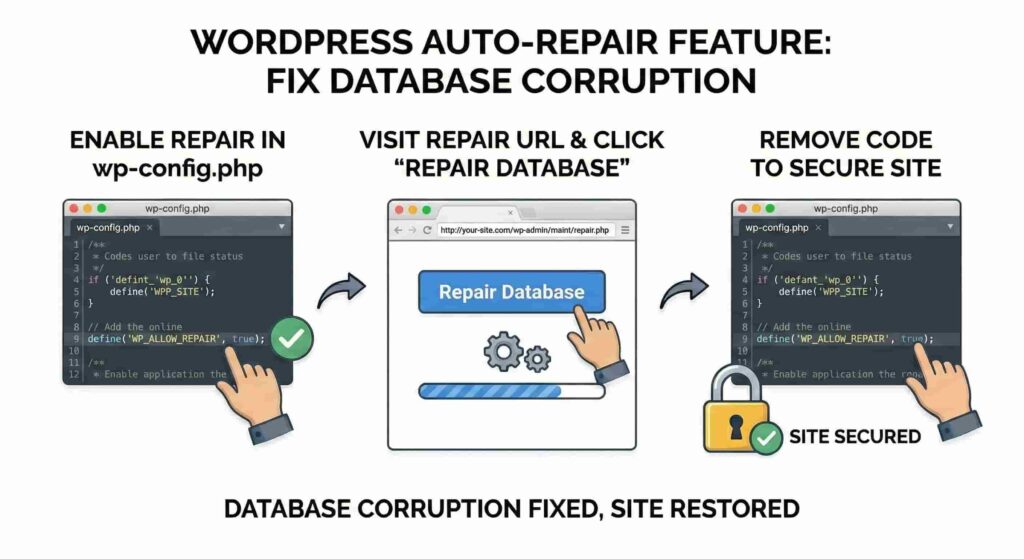
Step-by-Step Fix:
- Open wp-config.php.
- Add Code: Add this single line: define(‘WP_ALLOW_REPAIR’, true);
- Visit URL: Go to this address in your browser: http://your-site.com/wp-admin/maint/repair.php (Replace your-site.com with your actual domain).
- Click: You will see a button that says “Repair Database”. Click it.
- Wait: It will scan and fix broken tables.
- Important Cleanup: Once done, go back to wp-config.php and delete that line of code. You don’t want strangers repairing your database!
My server crashed during a storm. When it rebooted, my WordPress site was white. I used the repair tool, and it found three “broken tables” in the database and fixed them. The site loaded up perfectly after that.
Fix #15: Reinstall Core Files
The Logic Behind It: This sounds drastic, but it is actually safe.
Sometimes, a core file that runs WordPress (like wp-blog-header.php) gets corrupted by a failed transfer or a hacker. We need to replace the “engine” of the car without touching the “passengers” (your photos and blog posts).
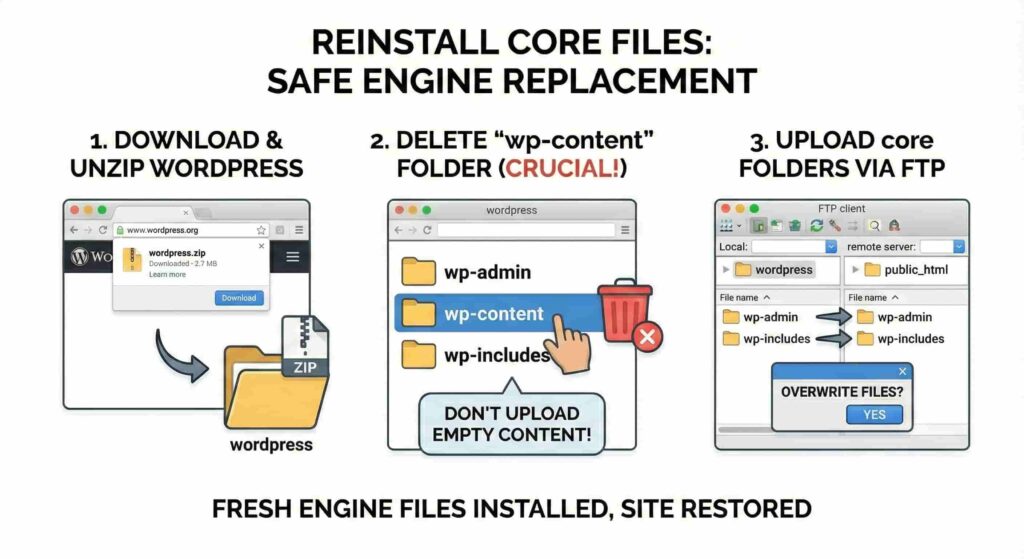
Step-by-Step Fix:
- Download: Get a fresh zip file of WordPress from wordpress.org.
- Unzip: Extract it on your computer.
- Crucial Step: Inside the new folder, DELETE the wp-content folder.
- Why? Because wp-content holds your images and themes. If you upload an empty one, you will lose your stuff. We only want to upload the other stuff.
- Upload: Use FTP to upload the wp-admin and wp-includes folders to your server, overwriting the old ones.
A malware attack corrupted my wp-settings.php file. Nothing would load. I uploaded a fresh copy of the core WordPress files. It overwrote the infected files with clean ones from the official source, and the site came back to life instantly.
Fix #16: Check Your CDN (Cloudflare)
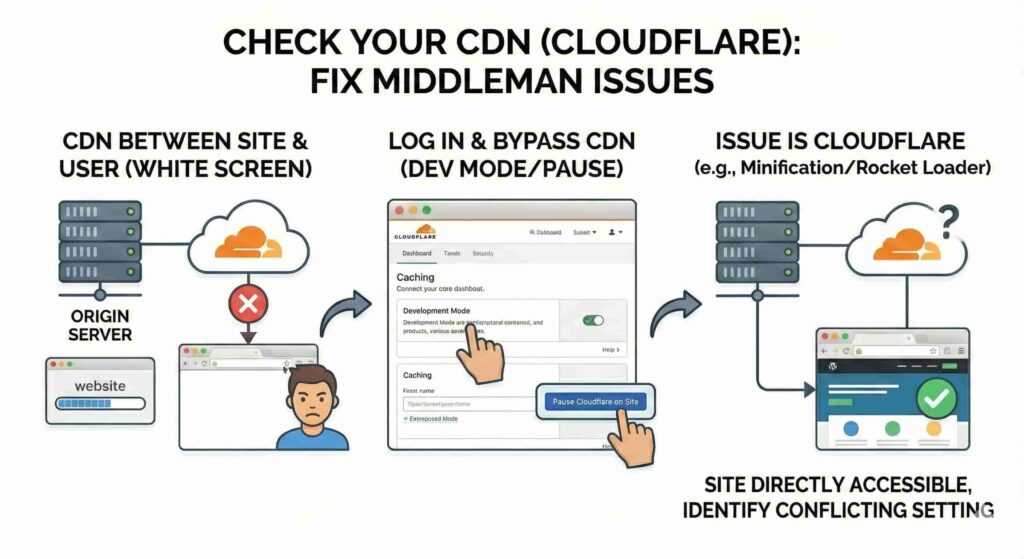
The Logic Behind It: A CDN (Content Delivery Network) like Cloudflare sits between your website and your visitors. It’s a middleman.
Sometimes, your website is actually fine, but the middleman is having a bad day. If Cloudflare is having connection issues, it might show a white screen to users, even if your server is running perfectly.
Step-by-Step Fix:
- Log in: Go to your Cloudflare dashboard.
- Development Mode: Find the “Caching” section and turn on “Development Mode.” This tells Cloudflare to stop helping and just let traffic through directly.
- Pause: If that fails, look for “Pause Cloudflare on Site” in the lower right corner of the overview page.
- Test: If the site loads now, the issue is a setting in Cloudflare (usually “Minification” or “Rocket Loader”).
I enabled “Rocket Loader” in Cloudflare to speed up a site. It conflicted with a JavaScript file on my theme, causing a white screen for all mobile users. Turning off Rocket Loader solved it.
Fix #17: Contact Your Hosting Provider (The “I Give Up” Fix)
The Logic Behind It: If you have tried fixes 1 through 16 and nothing worked, the problem is likely not WordPress. It’s the server hardware itself.
Maybe the hard drive is full. Maybe your account was suspended for non-payment. Maybe there is a server-wide outage in the data center. You cannot fix this from your end.
Step-by-Step Fix:
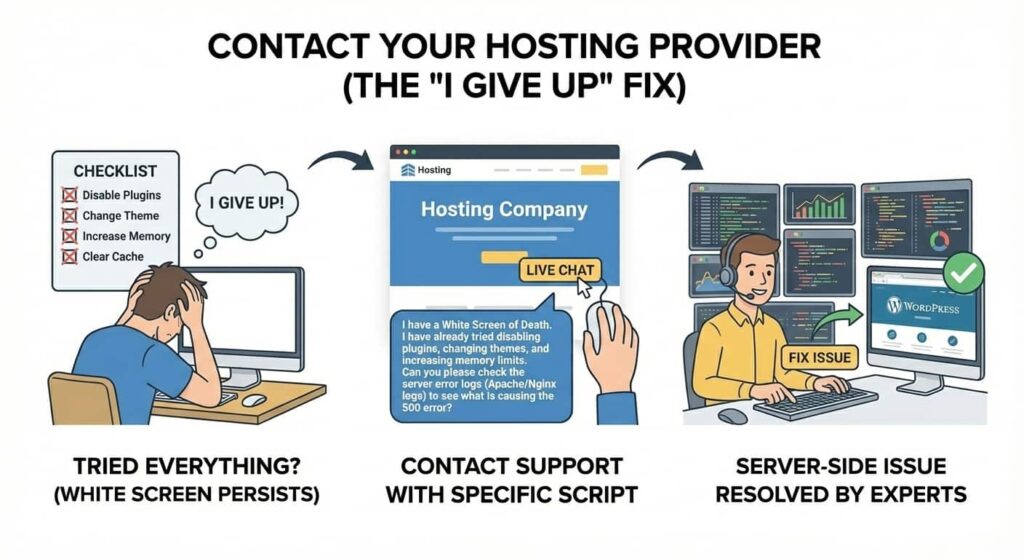
- Locate Support: Go to your host’s Live Chat.
- The Script: Don’t just say “My site is broken.” Say this:
- “I have a White Screen of Death. I have already tried disabling plugins, changing themes, and increasing memory limits. Can you please check the server error logs (Apache/Nginx logs) to see what is causing the 500 error?”
- Wait: Let them do the heavy lifting.
I spent 4 hours troubleshooting a site. Nothing worked. I finally chatted with support. The agent said, “Oh, sorry, we are migrating your account to a new server and the transfer got stuck at 99%.” They clicked a button, and the site was back. I wasted 4 hours because I didn’t ask them sooner!
Conclusion: You Survived!
The White Screen of Death is a rite of passage for every WordPress user. It feels like the end of the world, but as you can see, it is almost always fixable.
You have now learned how to check the engine, kick the tires, and even replace the transmission of your WordPress site.
Summary Checklist for next time:
- Clear Browser Cache (Always do this first!).
- Check for Recovery Email.
- Turn on WP_DEBUG.
- Disable Plugins.
Bookmark this page. The next time the “White Ghost” visits your site, you won’t need to panic. You will just grab this guide and get to work.
Got a crazy WSoD story? Let me know in the comments below which fix worked for you!