Seeing the message “There has been a critical error on this website” is enough to make any site owner panic. One minute your site is running perfectly, and the next, you are staring at a blank screen or a stern warning box.
But here is the good news: despite the name, a “critical error” is rarely fatal. It is usually just a conflict between code, a memory issue, or a plugin acting up. In this guide, we will walk through 20 beginner-friendly ways to Fix Critical Error on WordPress.
What Causes the WordPress Critical Error?
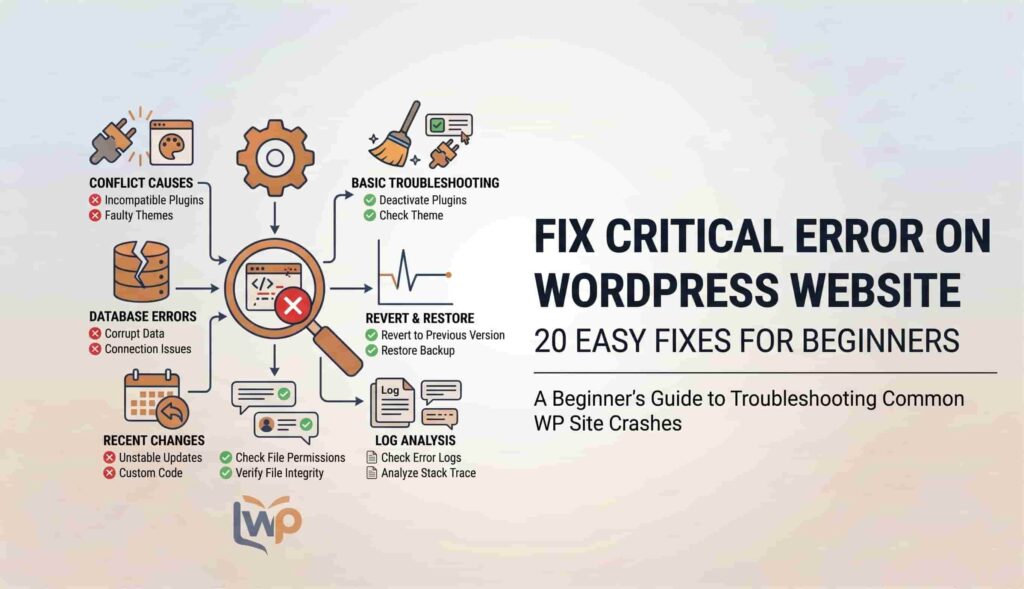
Before we dive into the fixes, it helps to understand what is happening. This error usually occurs when a PHP script (the language WordPress is built on) stops running. This happens because of:
- Plugin or Theme Conflicts: Two pieces of code fighting each other.
- PHP Memory Limit: Your site trying to do more than your server allows.
- Corrupt Files: Important files getting damaged during an update.
- Incompatible PHP Version: Using old code on a new server (or vice versa).
Step 1: Check Your Email First
WordPress has a built-in feature that tries to catch these errors. When a critical error occurs, WordPress often sends an email to the admin address.
- Check your inbox for an email titled “Your Site is Experiencing a Technical Issue.”
- Inside, you will find a link to enter “Recovery Mode.”
- This link lets you access your dashboard even when the front end is broken so you can deactivate the “guilty” plugin.
20 Easy Fixes to Resolve the Critical Error
1. Clear Your Browser Cache
Sometimes, the error is already fixed, but your browser is showing you an old, “cached” version of the page. Clear your history and cookies, then refresh the site.
2. Roll Back Recent Updates
Did you just update a plugin? If so, that is likely the culprit. If you can access your dashboard, use a plugin like WP Rollback to return to the previous version.
3. Deactivate All Plugins (The “Process of Elimination”)
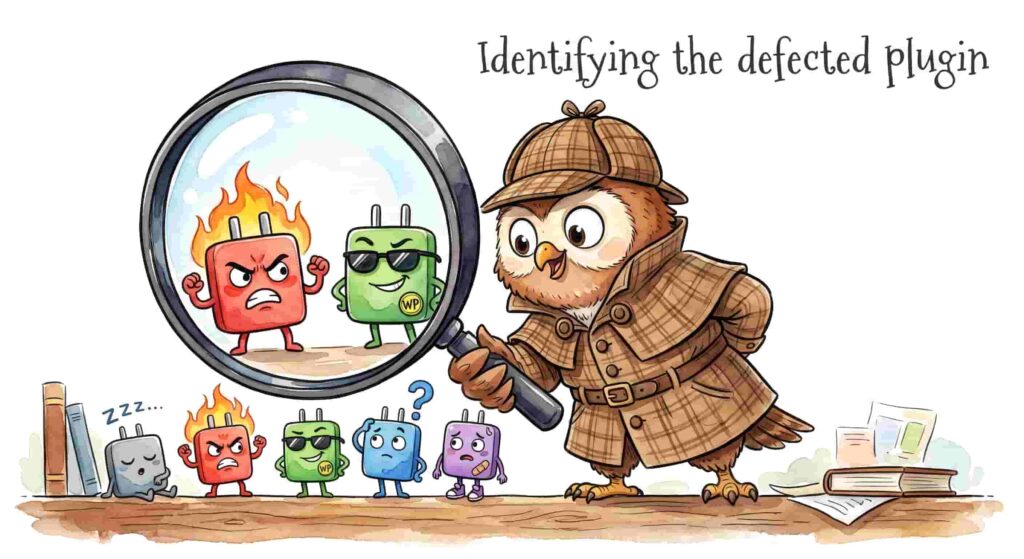
If you cannot access your dashboard, connect to your site via FTP or your hosting File Manager.
- Go to
/wp-content/. - Rename the
pluginsfolder toplugins_old. - Check your site. If it works, rename the folder back to
pluginsand turn them on one by one until it breaks again.
4. Switch to a Default Theme
Sometimes your theme is the problem. Using FTP, go to /wp-content/themes/ and rename your active theme folder. WordPress will force the site to use a default theme like Twenty Twenty-Four, which often fixes the error.
5. Increase the PHP Memory Limit
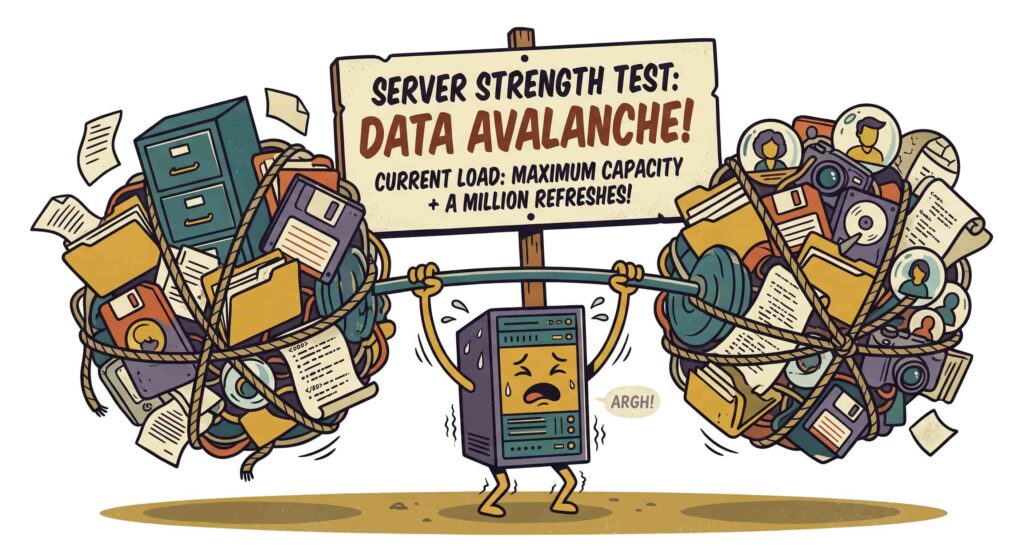
Your site might be “starving” for memory.
- Open your
wp-config.phpfile. - Add this line:
define('WP_MEMORY_LIMIT', '256M'); - This gives WordPress more room to breathe.
6. Check for PHP Version Incompatibility
Log into your hosting account (cPanel or hPanel). Check your PHP version. Most modern sites run best on PHP 8.0, 8.1, or 8.2. If you are still on 7.4, it might be time to upgrade.
7. Enable WordPress Debug Mode
To see the exact error, turn on the “X-ray vision” of WordPress.
- In
wp-config.php, finddefine('WP_DEBUG', false);and change it totrue. - Refresh your site. Instead of a generic error, you will see a specific file path and line number causing the trouble.
8. Delete the .htaccess File
A corrupted .htaccess file can break your site.
- Find it in your root folder and rename it to
.htaccess_old. - If the site works, go to Settings > Permalinks and click “Save” to generate a fresh one.
9. Clear Site and Server Cache
If you use plugins like WP Rocket or LiteSpeed, or a CDN like Cloudflare, purge all caches. Sometimes the “error” is stuck in the cache layers.
10. Update WordPress Manually
If an update failed halfway, your core files might be messy. You can re-upload the wp-admin and wp-includes folders from a fresh WordPress download (do NOT overwrite your wp-content folder).
11. Check for Malware
Hackers sometimes inject code that triggers critical errors. Run a scan using a tool like Sucuri or Wordfence if you can access your site.
12. Fix Database Tables
WordPress stores everything in a database. If a table is “crashed,” the site fails.
- In cPanel, go to phpMyAdmin.
- Select all tables and click “Repair Table.”
13. Disable the Block Editor (Gutenberg)
In rare cases, the new editor conflicts with old plugins. Try installing the Classic Editor plugin to see if the error disappears.
14. Check Your SSL Certificate
If your SSL is expired or misconfigured, it can cause redirect loops that look like critical errors. Ensure your https is active and valid.
15. Check File Permissions
Folders should usually be 755 and files should be 644. Incorrect permissions can stop WordPress from reading the files it needs to run.
16. Remove Custom Code Snippets
Did you recently add code to your functions.php file? Even a missing semicolon ; can crash a whole site. Remove the last code snippet you added.
17. Increase Execution Time
Some scripts take a long time to run. In your .htaccess or php.ini file, try adding: max_execution_time 300
18. Update Your Plugins and Themes
It sounds simple, but keeping everything updated prevents 90% of critical errors. Developers release “patches” specifically to fix these bugs.
19. Consult Your Hosting Logs
Your host keeps a “secret diary” of everything that goes wrong. Look for the Error Log section in your hosting dashboard. It will tell you the exact second and reason your site failed.
20. Contact Your Hosting Support
If all else fails, don’t be afraid to ask for help. Most hosts (like Bluehost, SiteGround, or Hostinger) have 24/7 chat support. They can often see “server-side” errors that you cannot.
Conclusion
The “Critical Error” on WordPress is a signal, not a death sentence. By following these 20 steps—starting with the WordPress Recovery Email and moving through plugin deactivation—you can fix almost any issue within minutes.
Quick Tip: Always take a backup of your site before making changes to wp-config.php or your database!
Will I lose my website data if I see a “Critical Error”?
No. A critical error is usually a code conflict, not a data deletion event. Your blog posts, pages, and images are stored safely in your database. Once you fix the conflict (usually a plugin or theme issue), your content will appear exactly as it was before.
Why did my site crash even though I didn’t change anything?
While it may seem like nothing changed, your server environment is always active. Your hosting provider might have updated the PHP version, or a plugin might have performed an automatic background update that is incompatible with your current theme.
How do I enter “Recovery Mode” without the email?
If you didn’t receive the official WordPress recovery email, you can manually trigger a similar state. The best way is to use FTP or File Manager to rename your plugins folder. This “deactivates” them, allowing you to log into your dashboard to investigate the cause.
Is the “Critical Error” the same as the “White Screen of Death”?
Essentially, yes. In older versions of WordPress, a major error would simply show a blank white screen. Newer versions (WordPress 5.2 and above) now show the specific message: “There has been a critical error on this website.” Both indicate that a PHP script has stopped running.
Can a bad internet connection cause a critical error?
No. A critical error is a server-side issue, meaning the problem exists within the website’s files or the web host’s server. While a bad connection might prevent you from loading the site, it will not trigger the “Critical Error” warning message.